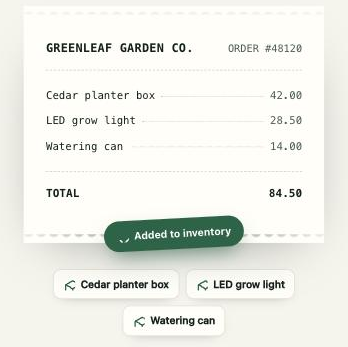
Forward your purchase receipts from Gmail to ecohome, and ecohome reads the email, adds the items it finds to your inventory, and notifies you when it’s done. You set this up once, with a filter, so mainly receipts are forwarded, not your whole inbox.
Key takeaways
- Set this up on a computer. Gmail’s mobile app can’t add a forwarding address.
- Each household has its own private forwarding address. Copy it from ecohome Settings.
- Use a filter so mostly receipts are forwarded, and leave Gmail’s general forwarding turned off.
Before you start
- You’ll need your ecohome account and your household’s forwarding address. You’ll find it in ecohome Settings, under Your forwarding address.
- Use a computer. Gmail’s forwarding setup is only available in the desktop web version, and the Gmail mobile app can’t add a forwarding address.
Step 1: Copy your ecohome forwarding address
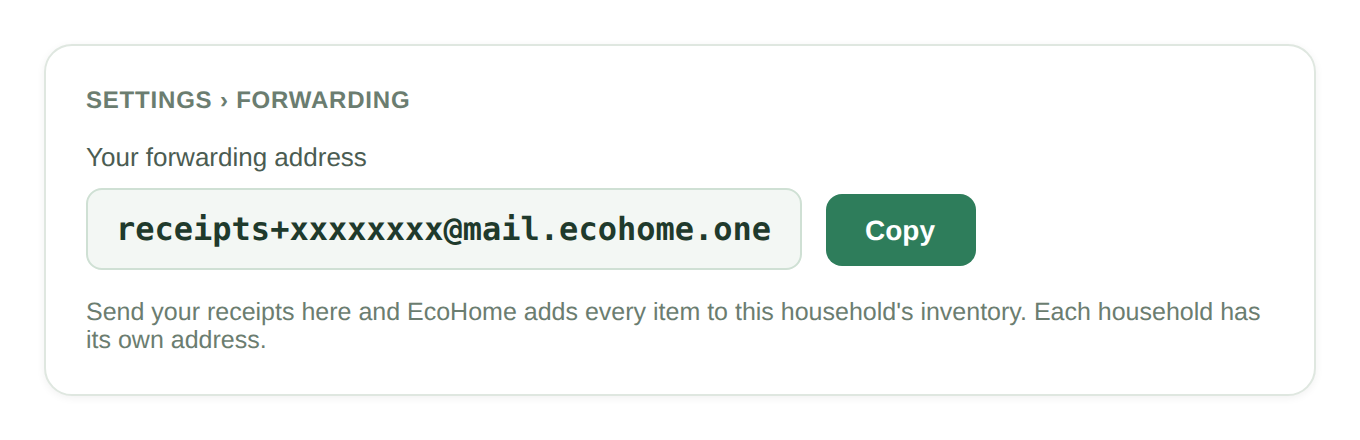
- Open ecohome (in the app, or at receipts.ecohome.one) and go to Settings.
- Under Your forwarding address, click Copy. Each household has its own address, so choose the household you want the receipts added to.
Step 2: Add the address to Gmail
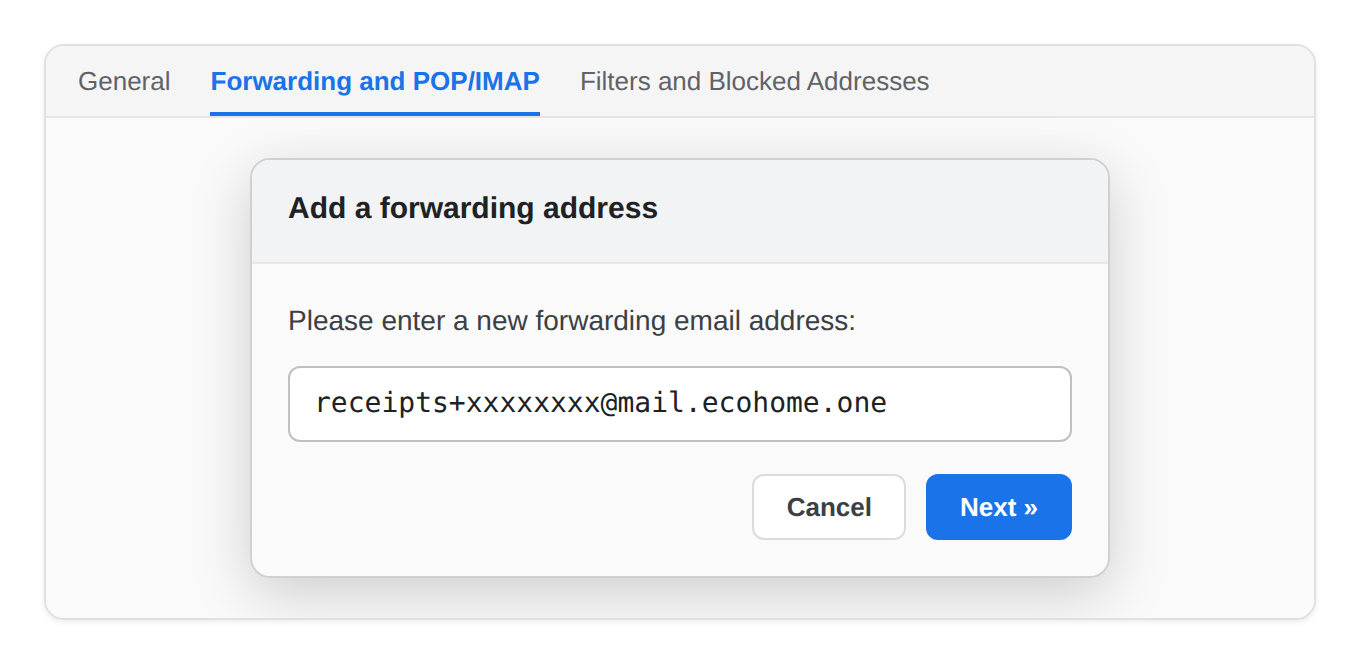
- In Gmail on a computer, click the gear icon, then See all settings.
- Open the Forwarding and POP/IMAP tab.
- Click Add a forwarding address, paste your ecohome address, then click Next, Proceed, and OK.
Step 3: Confirm the address
Gmail sends a confirmation to your ecohome address to make sure you own it. You don’t need to go looking for it:
- Go back to ecohome and open Settings. Wait a few seconds.
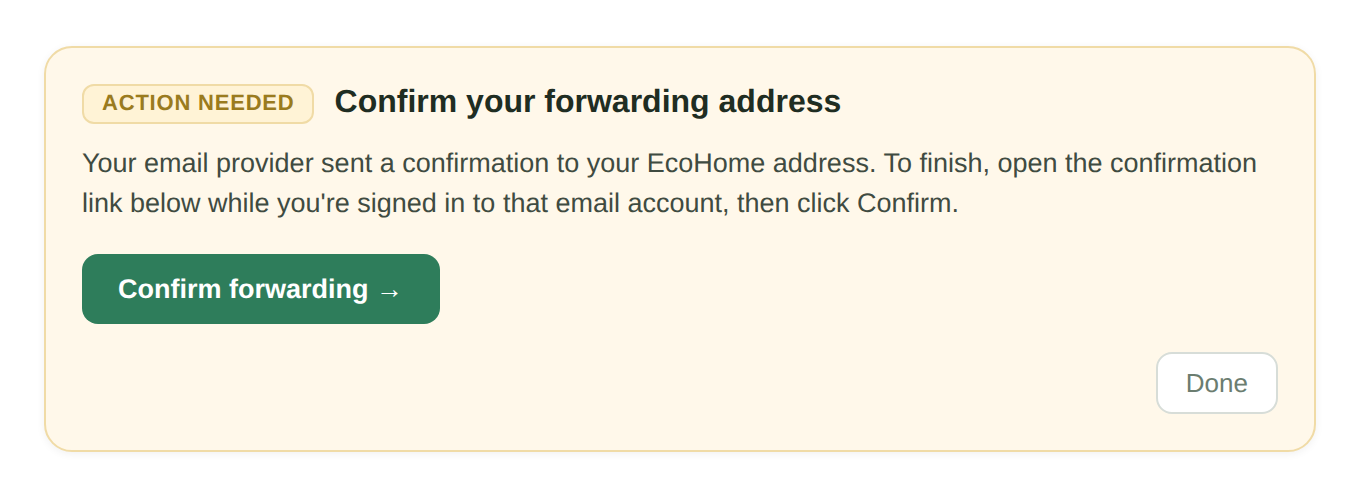
- A “Confirm your forwarding address” card appears. Click Confirm forwarding, or copy the code shown and paste it into Gmail’s Verify box.
- In Gmail, the address now shows as verified.
Step 4: Forward receipts with a filter
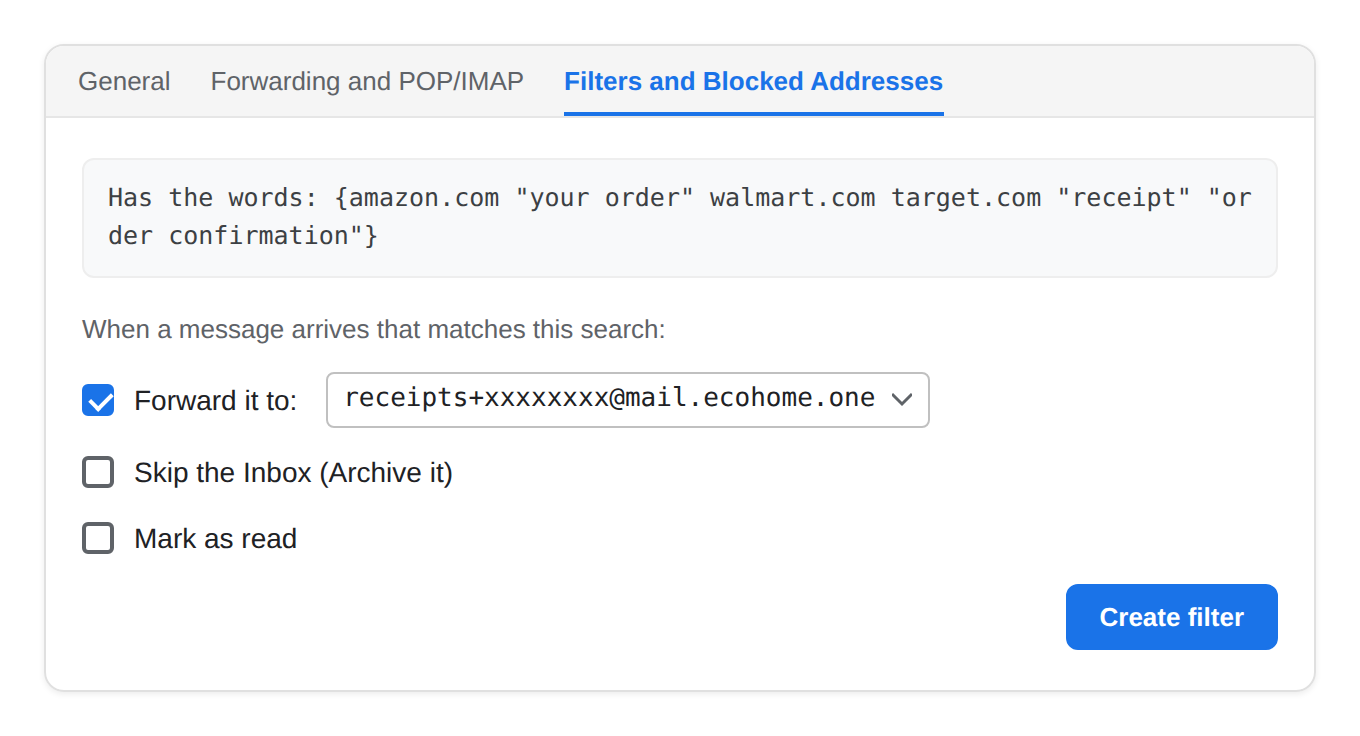
Don’t choose “Forward a copy of incoming mail,” because that forwards everything. Use a filter instead, so mail from stores and receipt-style subjects is forwarded, and nothing else:
- In Gmail settings, open Filters and Blocked Addresses, then click Create a new filter.
- Leave From and Subject empty. In the Has the words box, paste the line below. The curly braces tell Gmail to match a message that is from one of these stores or has a receipt-style subject.
{from:(amazon.com OR walmart.com OR target.com OR bestbuy.com OR ebay.com OR apple.com OR paypal.com OR costco.com OR homedepot.com OR ikea.com) subject:(receipt OR invoice OR "order confirmation" OR "your order" OR "order summary")} - Click Create filter.
- Check Forward it to, and choose your ecohome address.
- Click Create filter.
- Finally, on the Forwarding and POP/IMAP tab, select Disable forwarding and click Save Changes. The filter does the forwarding, so your whole inbox shouldn’t forward.
Gmail only forwards new messages through a filter. To add receipts you’ve already received, forward them to your ecohome address one at a time.
That’s it
From now on, matching emails are forwarded to ecohome, which reads each one, adds the items it finds to your inventory, and notifies you when it’s done. Other mail isn’t forwarded, and everything stays in your inbox as usual. You can edit the filter any time to add or remove stores.
Tips and troubleshooting
- More than one household? Each has its own forwarding address. Set up a filter for whichever household you want the items added to.
- Prefer not to forward? Connect Gmail, Outlook or Yahoo to ecohome directly instead, and receipts come in with no filter to set up.
- Getting promotions too? The filter forwards all mail from the listed stores. Edit it to remove a store, or narrow it to receipt-style subjects only.
- Nothing showing up? Check that the address shows as verified in Gmail, and that the filter’s Forward it to is set to your ecohome address.
See also
Don’t have ecohome yet?
Get your receipts into your home inventory without typing. Free on iPhone, Android and the web. No credit card.

Or use it in your browser at web.ecohome.one.